1. Check whether Polymarket is available
Before signing up, check whether Polymarket is available in your location. The Countries hub separates platform availability from local legal questions.
2. Open Polymarket and select Sign Up
Open Polymarket’s official website and select Sign Up in the header. On the English interface reviewed for this guide, the button opens a window titled “Welcome to Polymarket.”
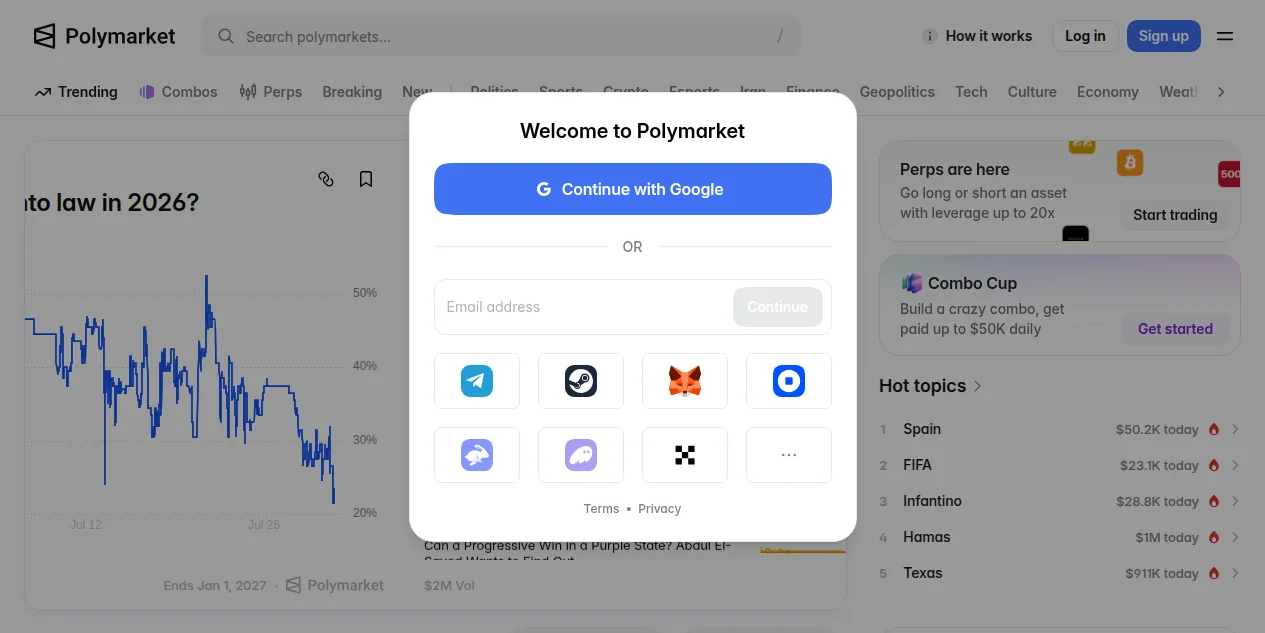
Interface reviewed: July 31, 2026. Polymarket may change button names, layout or provider choices.
3. Choose a sign-up method
Polymarket currently offers three sign-up methods. Choose the one you understand and can complete on Polymarket.
Select Continue with Google, then complete the Google confirmation presented in that flow. After completion, Polymarket says you can log in with that Google account.
Enter your email address, select Continue, then enter the six-digit code delivered to that address. After completion, Polymarket says the email address and code can be used to log in.
Crypto wallet
Select a wallet provider and review each connection or signature request in your wallet before approving it. Polymarket documents a message to connect the wallet and another to enable trading. Wallet setup, deposits and trading are outside this guide.
4. Complete the on-screen confirmation
Follow the prompts for the method you selected. Do not enter a code into a chat, share it with another person, or approve a wallet message you do not understand. If the labels or requests differ materially from the public flow shown here, pause and check the official support material before going further.
5. Check that account access succeeded
After completing the method you selected, you should be able to return to Polymarket and sign in with the same Google account, email address or connected wallet. The exact screen shown afterward may vary, so do not treat a particular dashboard, balance or verification badge as a universal completion signal.
6. Before depositing or trading
You do not need to fund an account or place an order after creating it. If you are deciding what to do next, read a Polymarket market page first to understand the question and its resolution rules. For broader orientation, see How to Get Started on Polymarket.
7. Troubleshooting and security
If a method is not shown, a confirmation fails, or availability looks different from the guidance, do not try to work around a restriction. Recheck Polymarket and use official support for account-specific help.
Check availability before signing up
Open Polymarket, select Sign Up and choose the method that works for you.
PolymarketExplained may earn a referral commission if you use this link, at no additional cost to you.
Frequently Asked Questions
Can every person create a Polymarket account?
No. Product availability and eligibility can depend on physical location and current platform requirements.
Should I fund an account immediately after creating it?
No. Account setup and funding are separate decisions; read the funding options and applicable third-party costs first.